Pricing

Products





























Blog
Contact Us
Pricing
Products
Blog
Contact Us
Fundraisers
Onboarding
Participants
Learn how to enter your participants' A-thon fundraiser performances and collect your a-thon's pledges.
Once your Teamfi a-thon fundraiser is activated, your participants' donation pages will start collecting flat donations and pledges. For pledges, the will be donating per amount that that participants completes in your a-thon. For example, in a walk-a-thon this might be pledging $5 per lap, or in a lift-a-thon this might be pledging $0.05 per pound lifted.
When making a pledge, a donor will see that participant's projected performance for the a-thon and will be able to gauge their donation based on that number. For example, if a participant's projected laps walked in a walk-a-thon is 25 laps, then the pledge-maker will see that by pledging $5 per lap they will likely have a donation around $125.00.
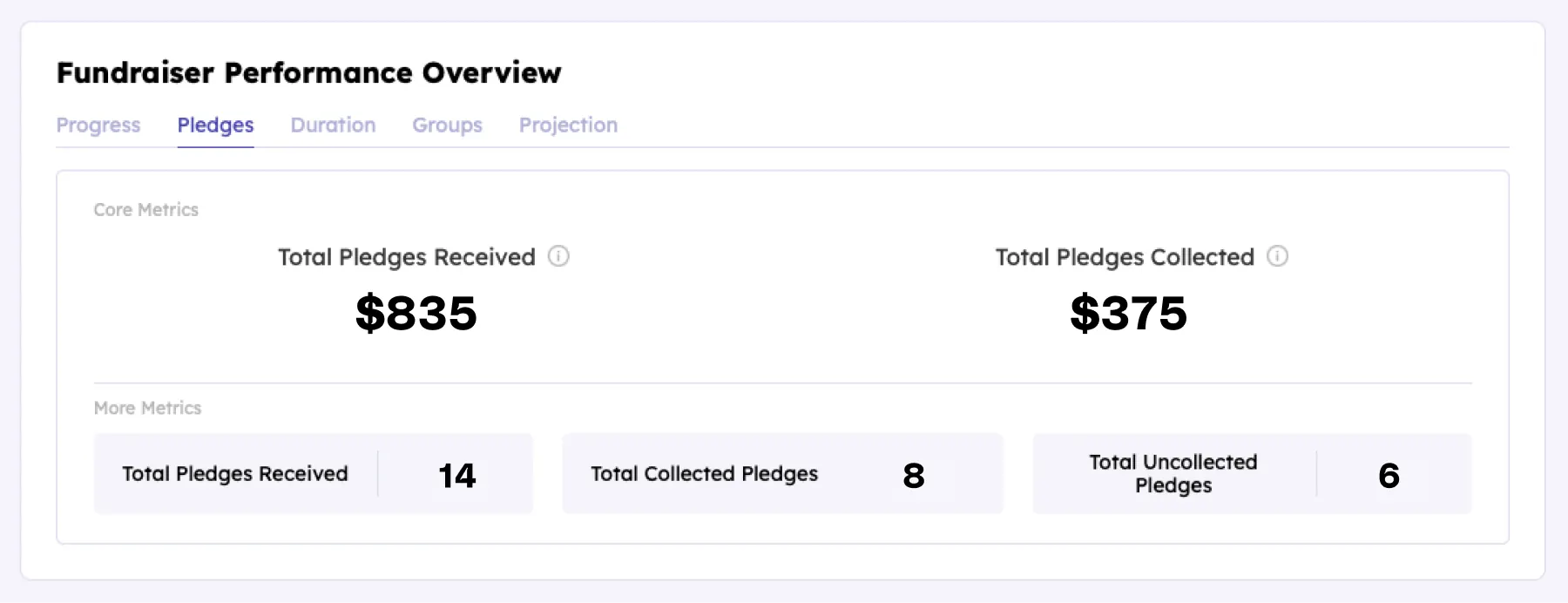
Any pledges that are made to your participants during your organization's a-thon fundraiser will be viewable on your fundraiser's "pledges" tab in the fundraiser performance panel.
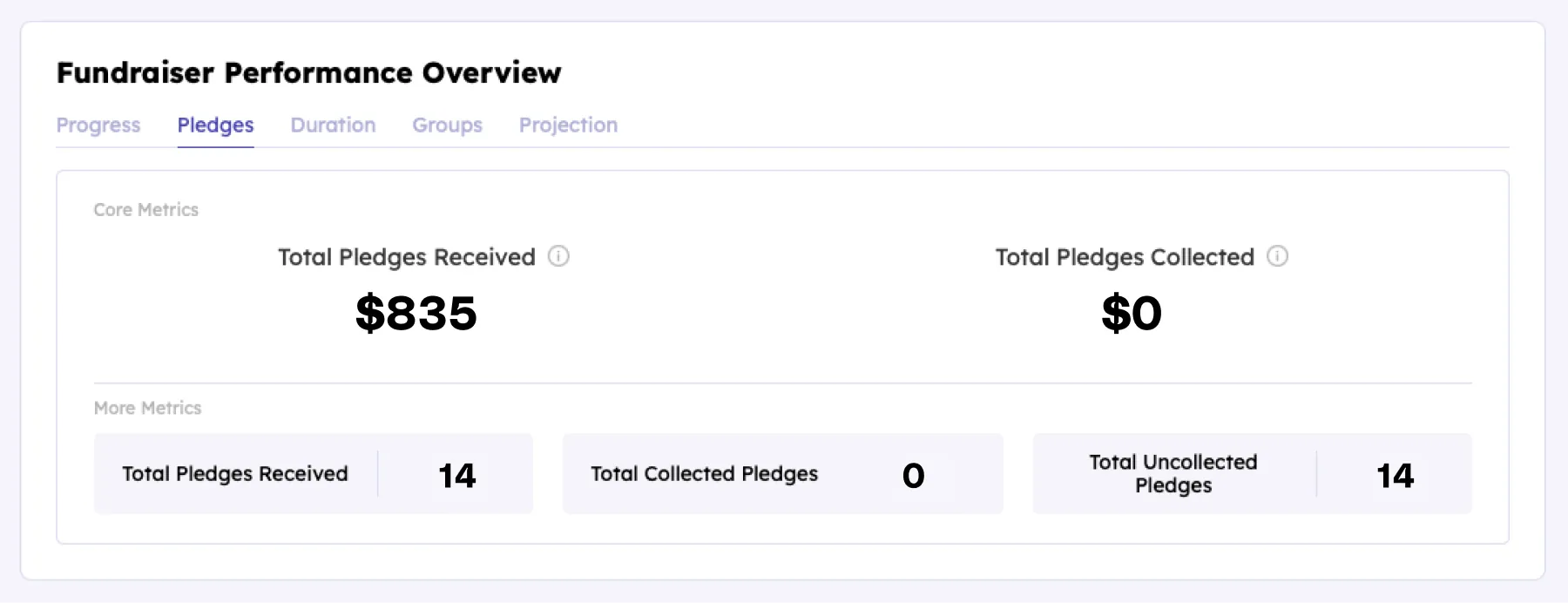
Before your participant's performances are entered, your metrics table will look like the panel above – no pledges will be collected yet because no outreaches are sent to pledge-makers until there is a participant performance number to based the pledge donation on.
Once your a-thon event testing has occurred and participant performances are recorded, you can enter those performance numbers on your participant dashboard using the "Manage Participants" dropdown and clicking the "Enter Participant Results" at the top of the dropdown.
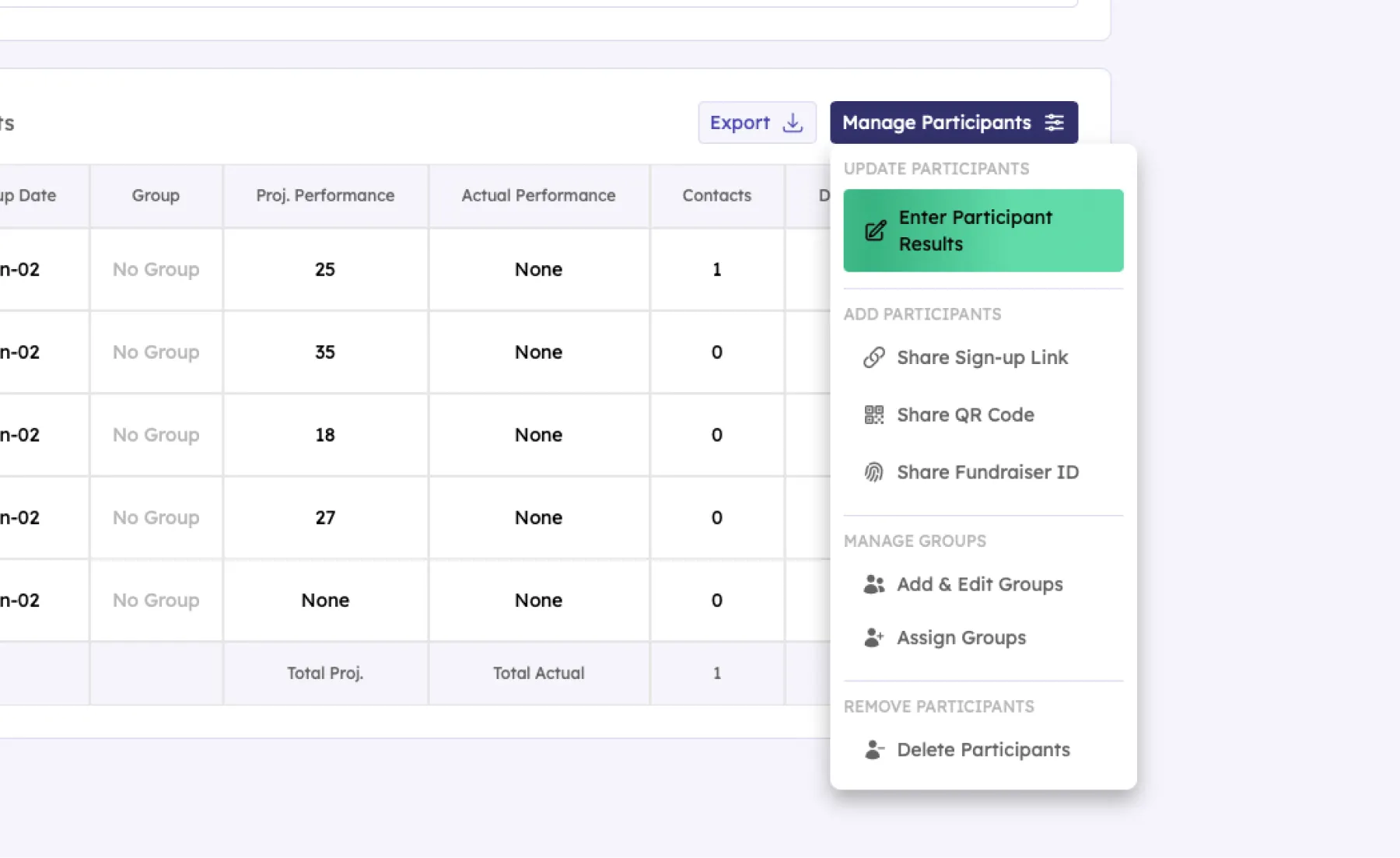
Once the "Enter Participant Results" button is clicked, that will open the "Enter Participant Results" modal which will allow you to enter your a-thon's participant results for each participant in your fundraiser.
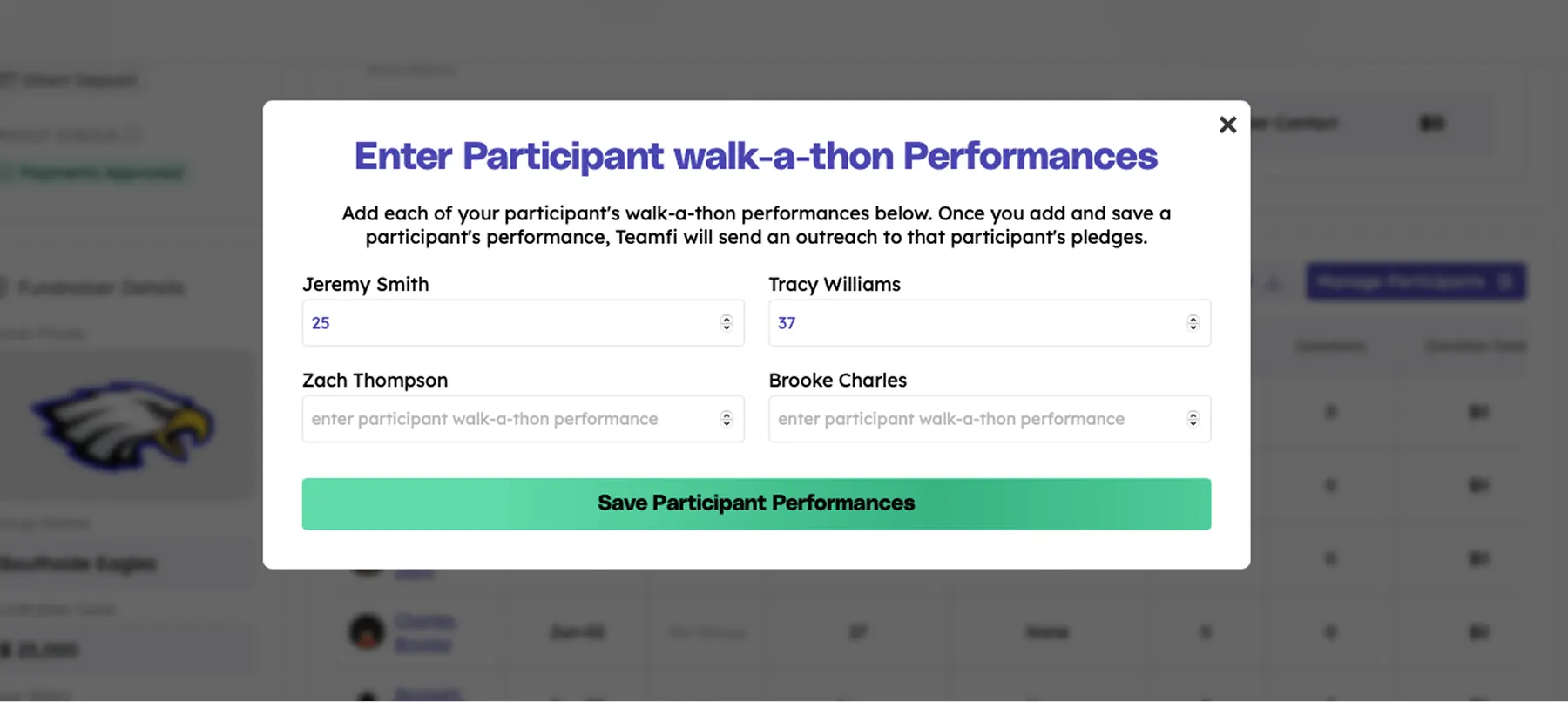
Upon entering and saving the results, your fundraiser dashboard will re-fresh, and you will now see the results that were entered for your participants' a-thon performances saved to the fundraiser participants table on your dashboard. You will see these updated performance numbers on the "Actual Performance" column highlighted below. For participants that have not yet had a result added, their actual performance will read "None".
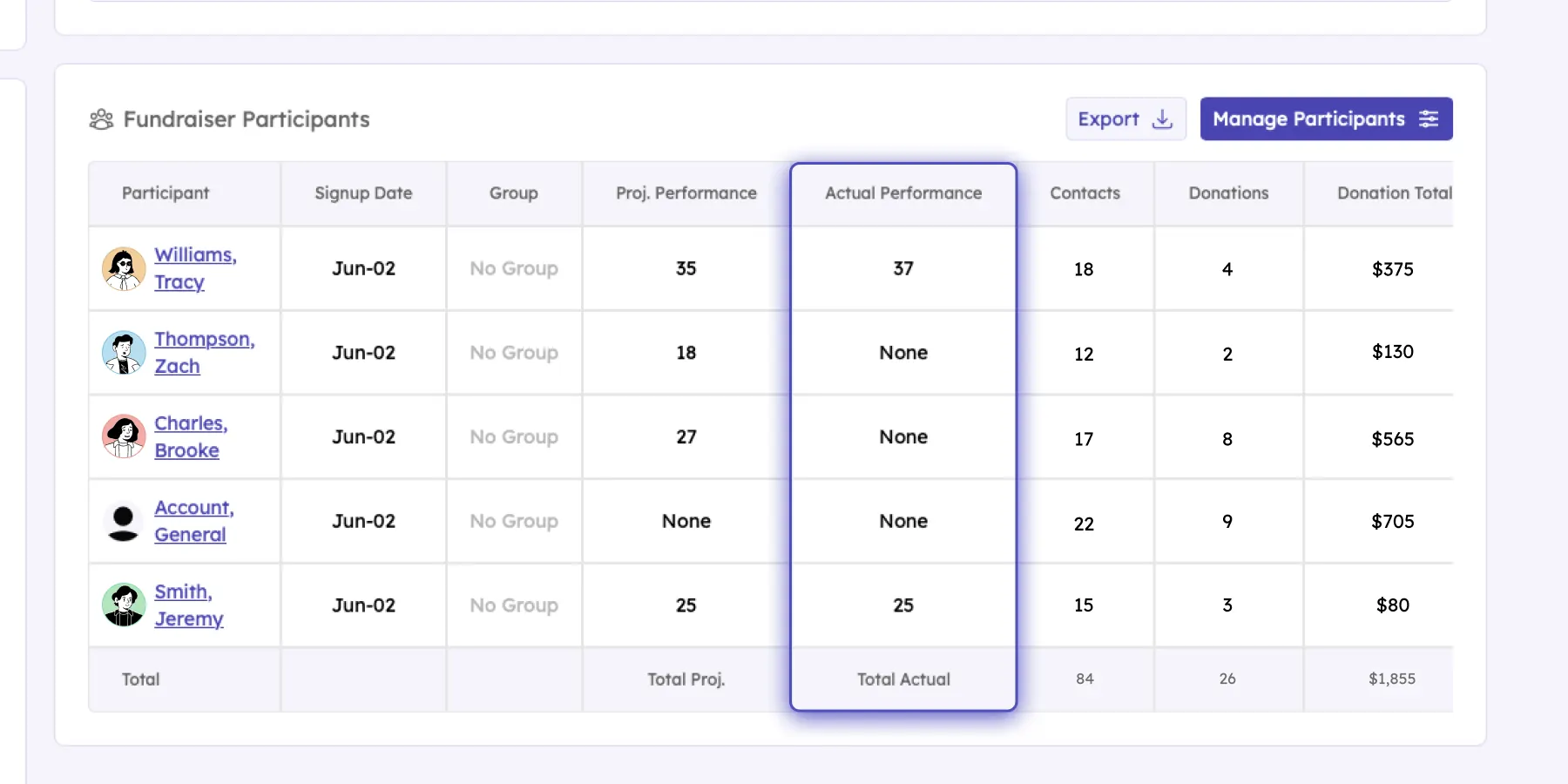
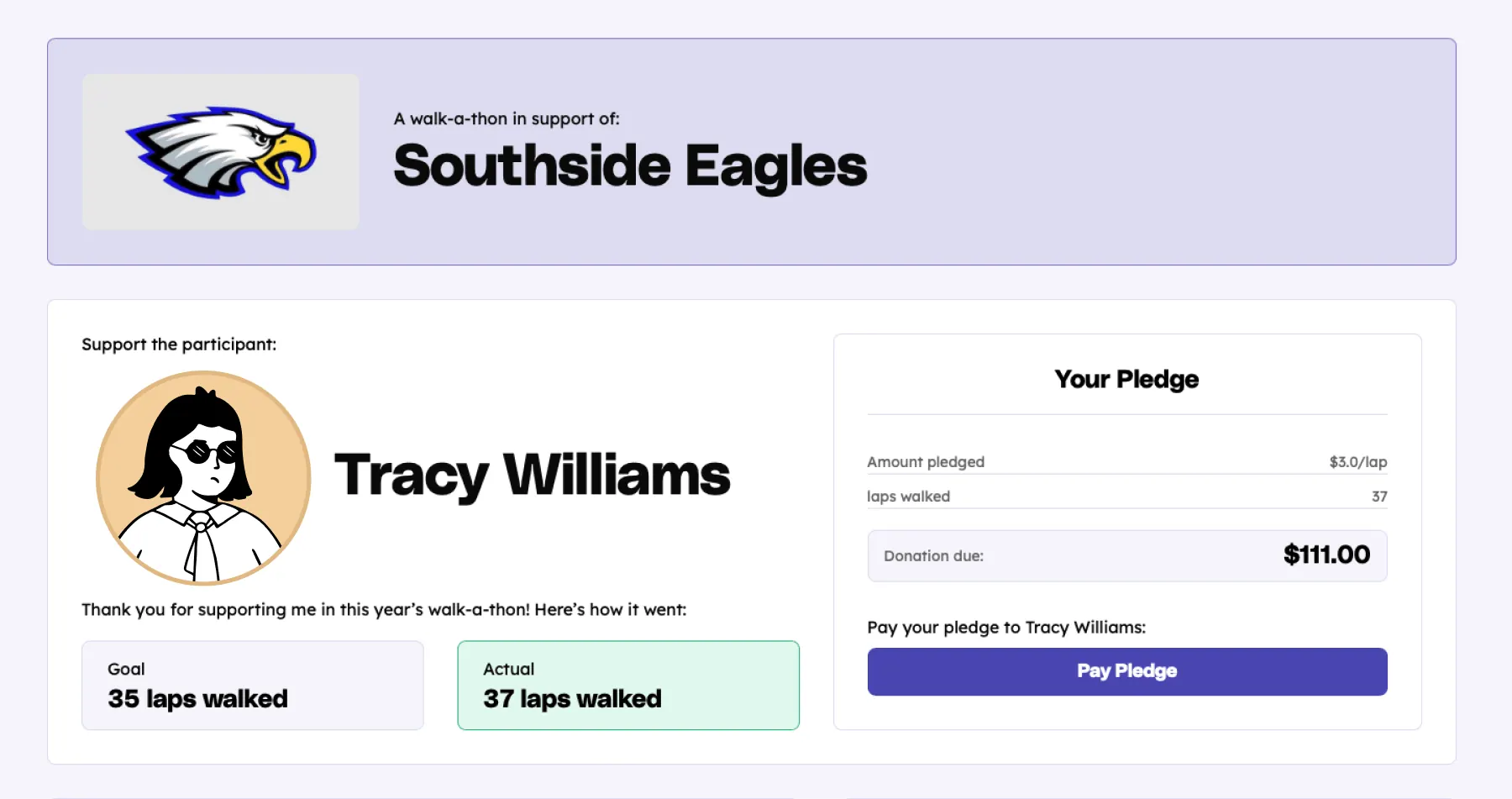
After a participant's a-thon performance is saved, an automated outreach will be sent to each individual who made a pledge to that participant in your fundraiser. That outreach will include a link to make a donation based on the pledge that donor made and the a-thon result that was entered for that participant. The link that is send to the pledge-maker will look like this:
As supporters who made pledges leading up to your event pay their pledge-based donations, you will be able to track the progress of pledged paid in your fundraiser dashboard in the "Pledges" tab of your Fundraiser Performance panel.
And that is all there is to it! You have successfully run an a-thon, inputted participant performances, and collected your a-thon's pledged donations.
Your team deserves 100%


Teamfi provides free fundraising software for school groups, sports teams, clubs, and nonprofits across the United States.