Pricing

Products





























Blog
Contact Us
Pricing
Products
Blog
Contact Us
Fundraisers
Onboarding
Learn how to create a pledge-based custom A-thon fundraiser with Teamfi
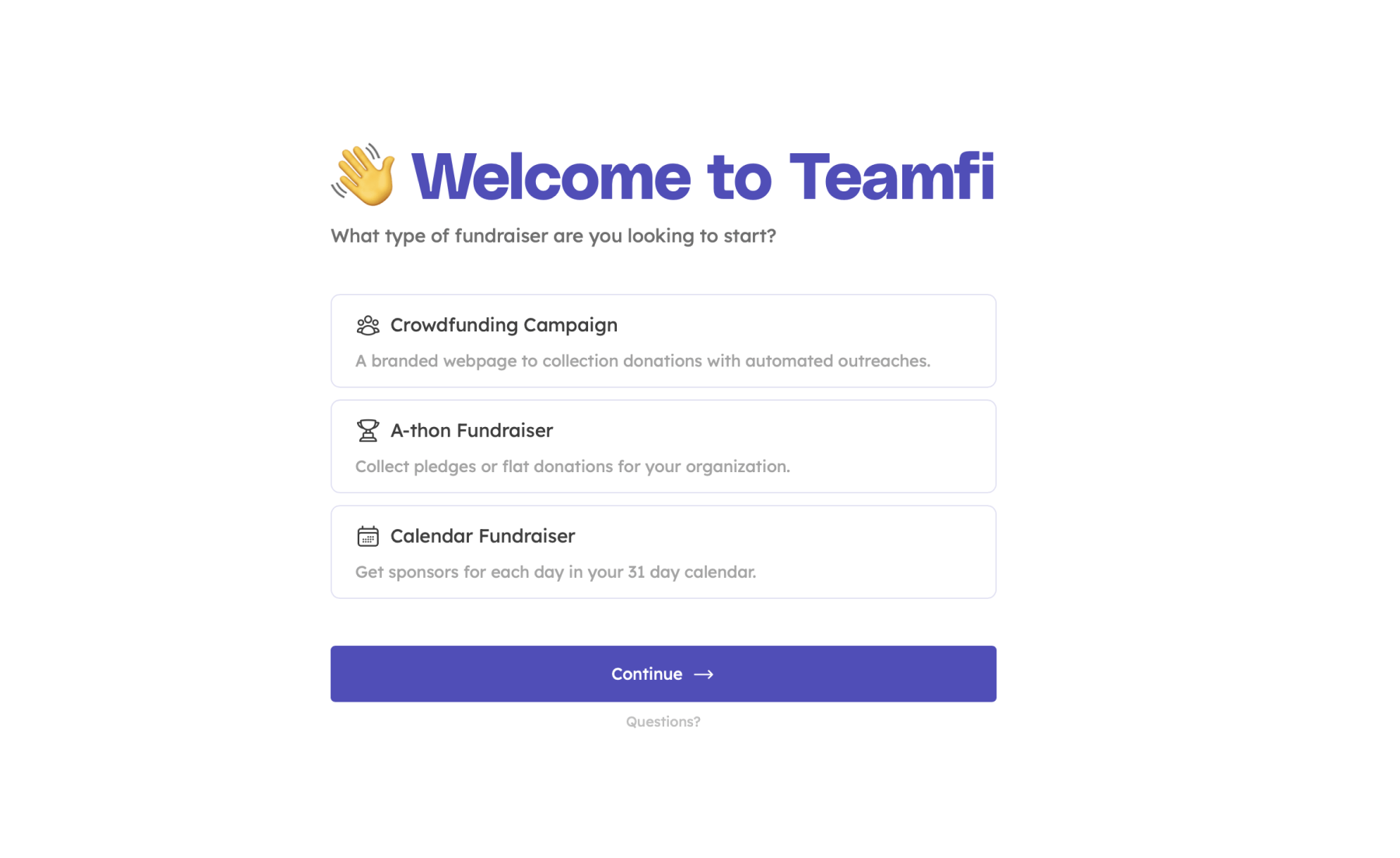
To create your first A-thon fundraiser with Teamfi, the first thing you will need to do is to select which type of fundraiser you want to run With Teamfi, you can choose between three entirely free digital fundraiser types:
You can choose which fundraiser you'd like to run on the following screen which will appear once you sign-up for a Teamfi account – in this case, you will want to select "A-thon Fundraiser"
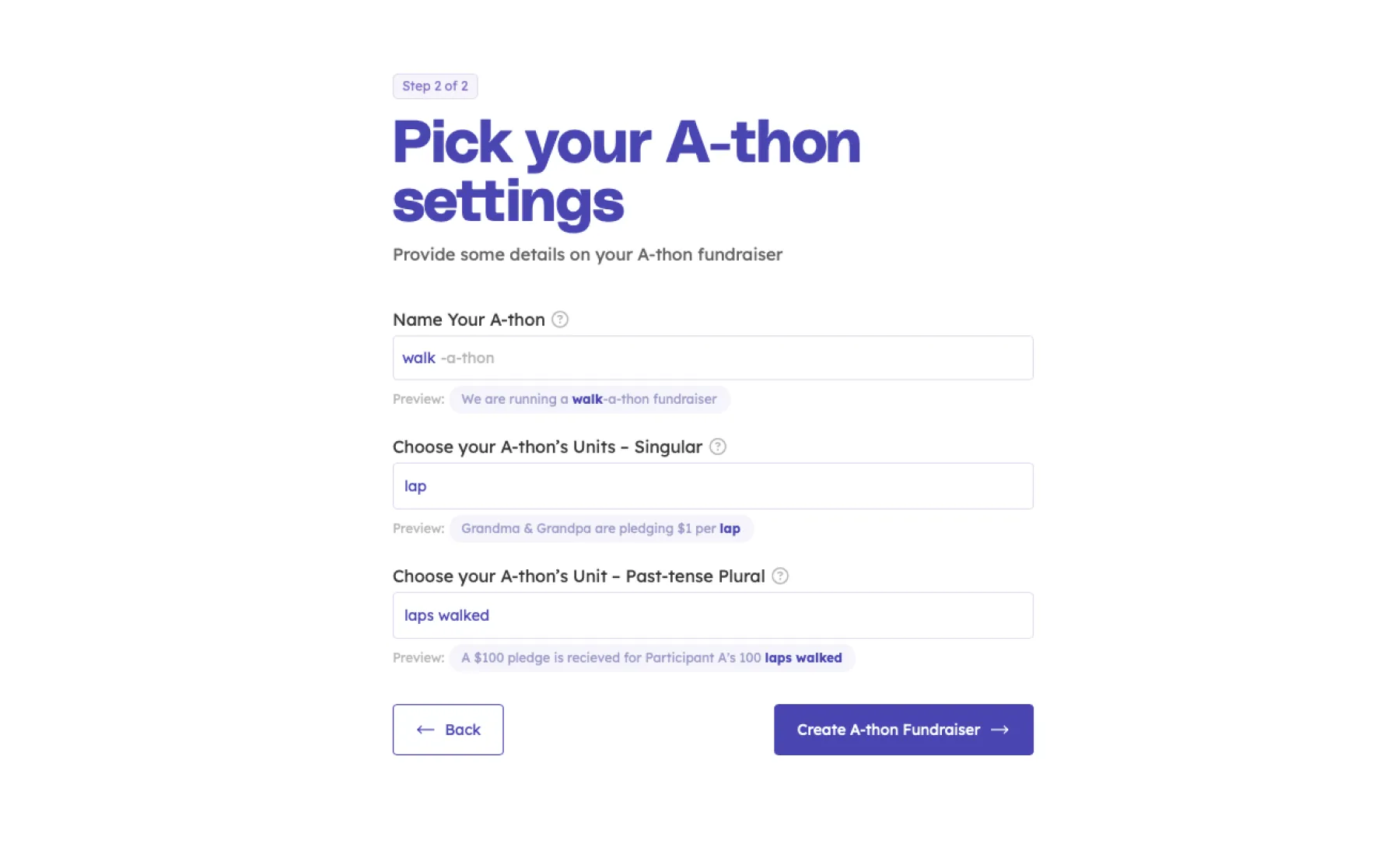
One of the great features about Teamfi's A-thon fundraisers is that you can customize your a-thon's units in any way imaginable, letting you collect pledges based on any sort of activity you can think of. Once you've selected and A-thon as your fundraiser, you will need to specify your type of a-thon on the following screen which will ask you to fill in three fields:
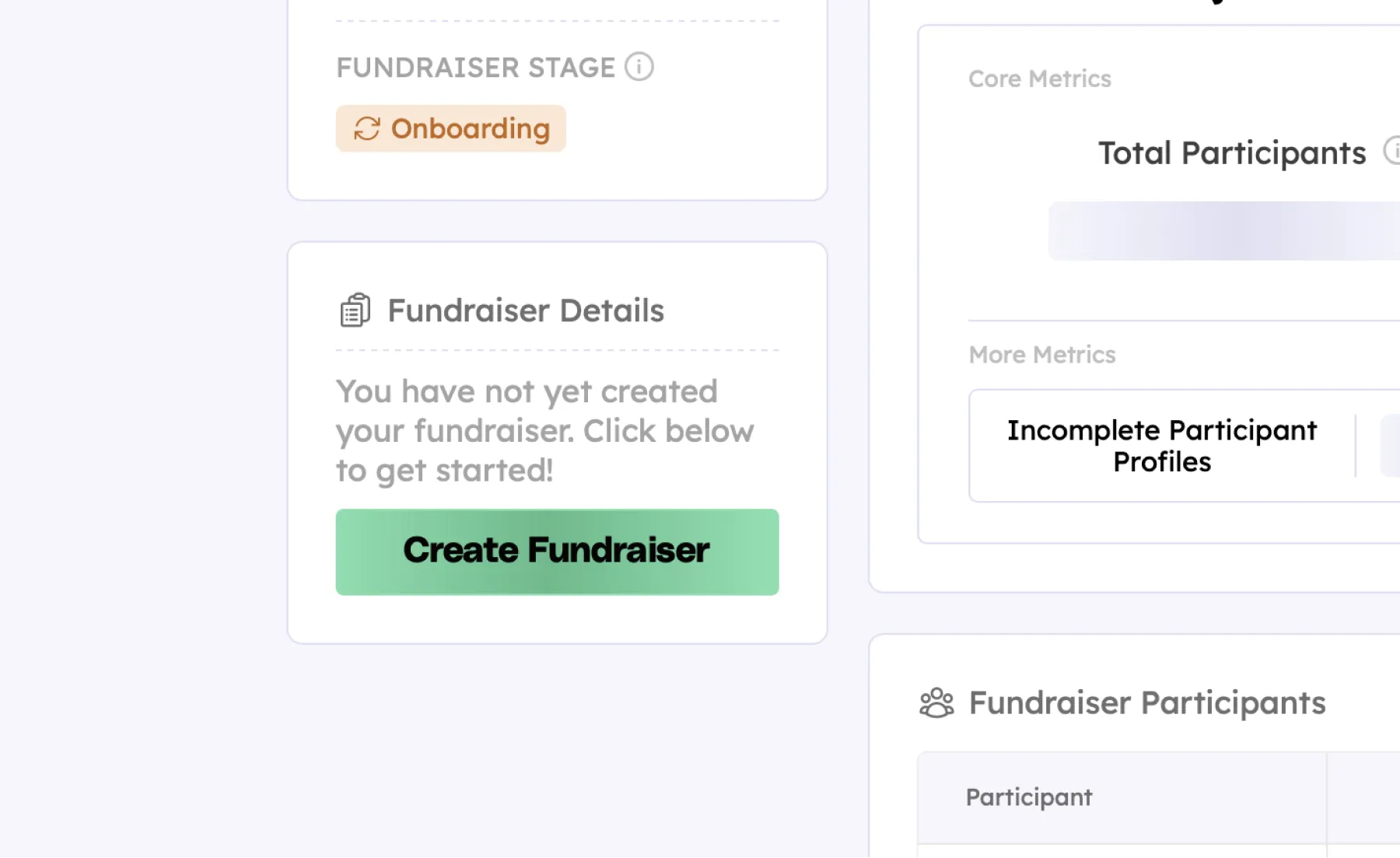
Following selecting your fundraiser type and customizing your A-thon settings, you will land on your a-thon fundraiser's fundraiser dashboard. To create your fundraiser, just click the "Create Fundraiser" button within the Fundraiser Details panel – this is how you will customize your fundraiser to your specific organization and circumstance.
Once you click the "Create Fundraiser" button, that will open the Create Fundraiser modal, which will ask a few questions about your a-thon fundraiser. This information will help customize your donation pages for you potential supporters. The information you will need to enter to create your fundraiser includes:
If you make a mistake or or are unsure of your fundraiser's information there's no ned to worry – this information can still be edited later at any time.
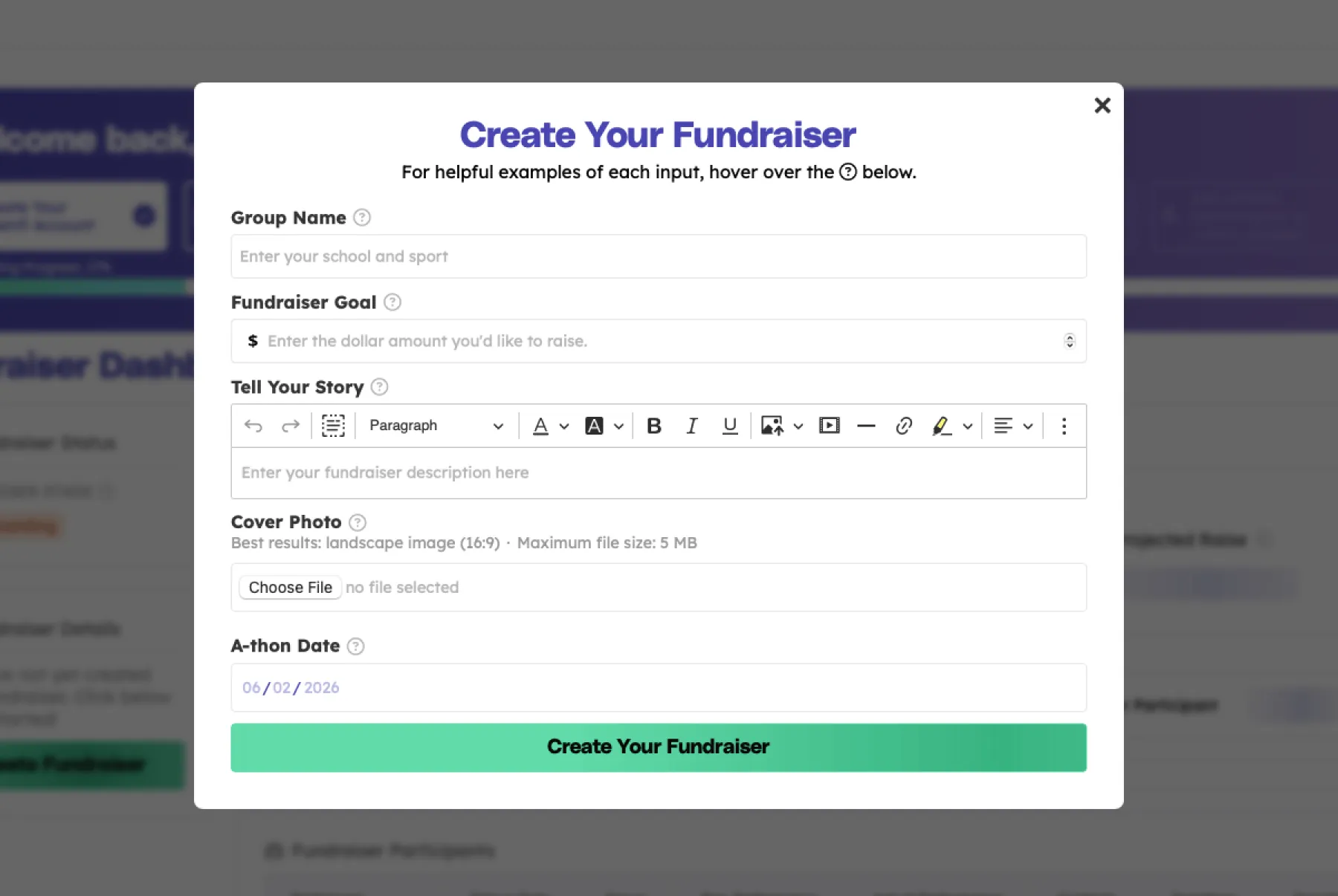
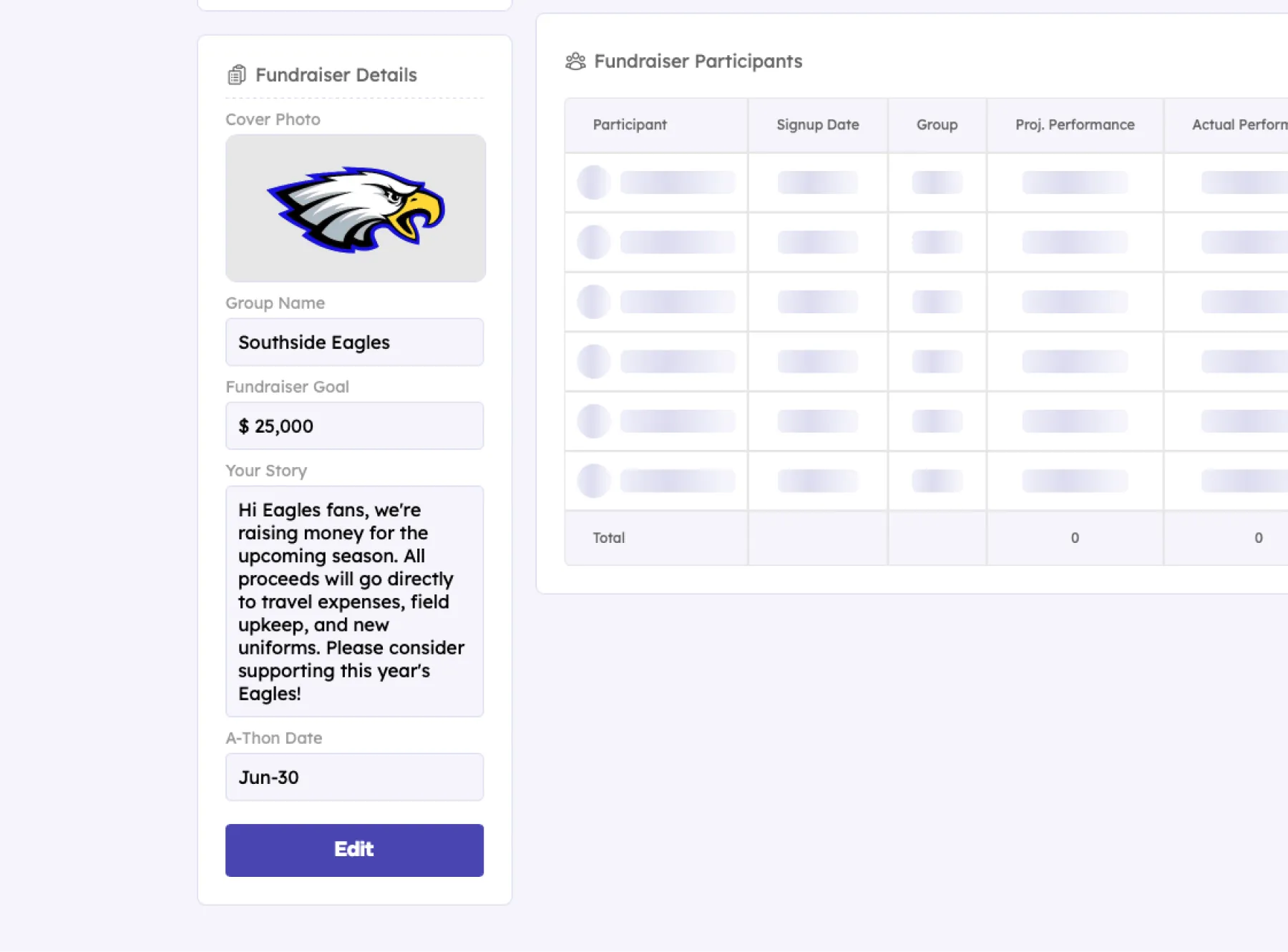
Once you successfully add all the fields above and click "Create Your Fundraiser" you will have successfully created and customized your Teamfi a-thon fundraiser! Upon submitting the form, your page will refresh and you will now find all of your fundraiser's information populated in the "Fundraiser Details" panel on your fundraiser dashboard like so:
Your team deserves 100%


Teamfi provides free fundraising software for school groups, sports teams, clubs, and nonprofits across the United States.